Installing R
What is R and RStudio?
R is open-source and is a very powerful, widely used statistical software for data analysis, statistical modeling, and data visualization.
RStudio is an integrated development environment for R that provides a user-friendly interface and tools for data analysis in R. It is also free to use.
You need to have both R and RStudio installed on your computer.
Step 1: Installing R
You can download R from the Comprehensive R Archive Network (CRAN) at [https://cran.r-project.org/ ].
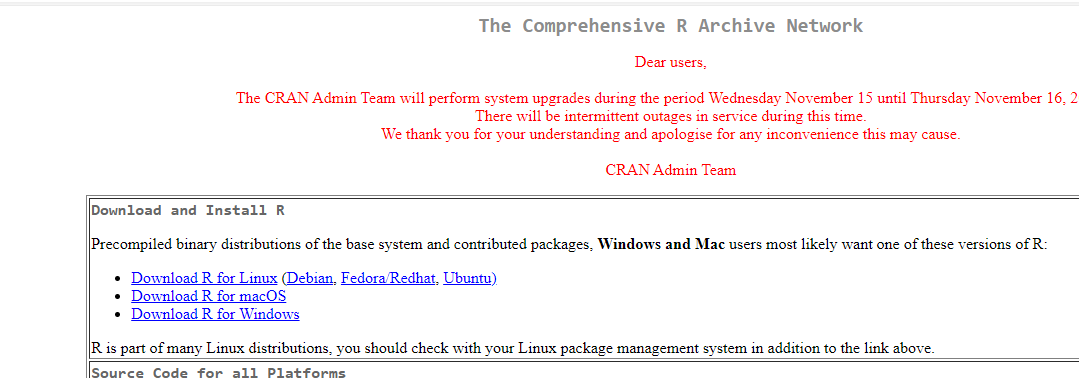
The version of R to download depends on what operating system you use. Below are the detailed installation instruction for windows and Mac OS X users. The process described here are based on the latest version available as of the time this note is being written.
For Windows:
- Open the internet browser and go to [https://cran.r-project.org/] and click on the ‘Download R for Windows’.
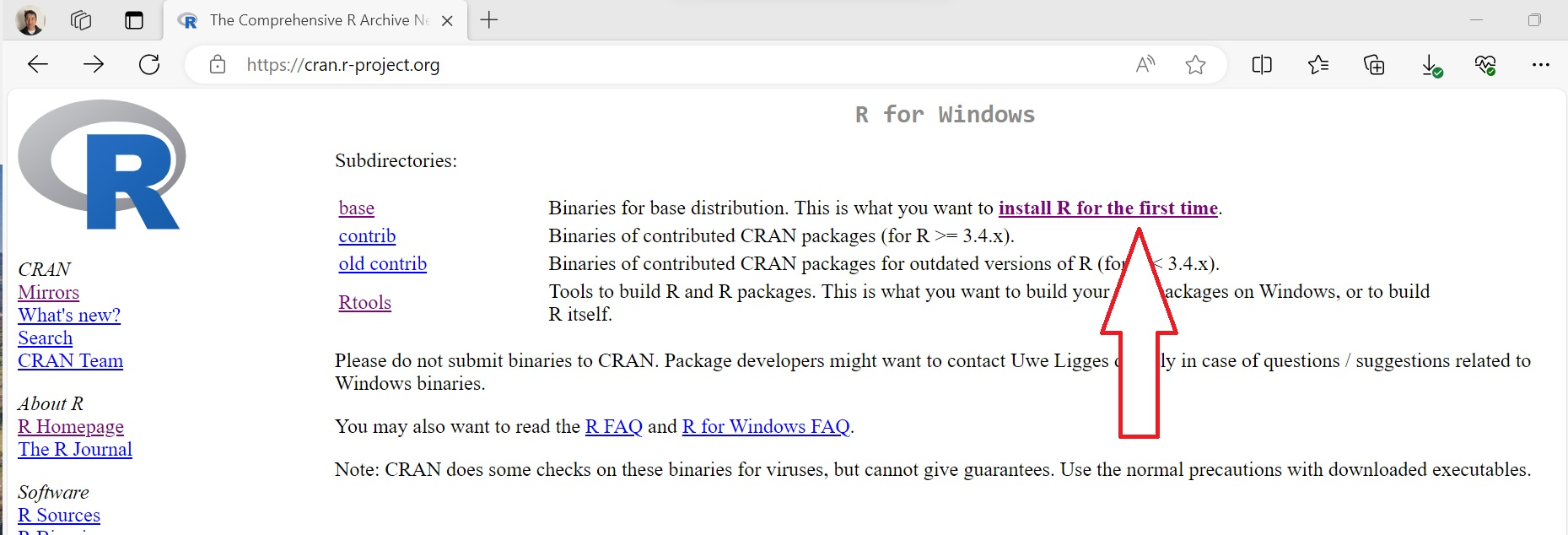
- Click on the ‘install R for the first time’ link.
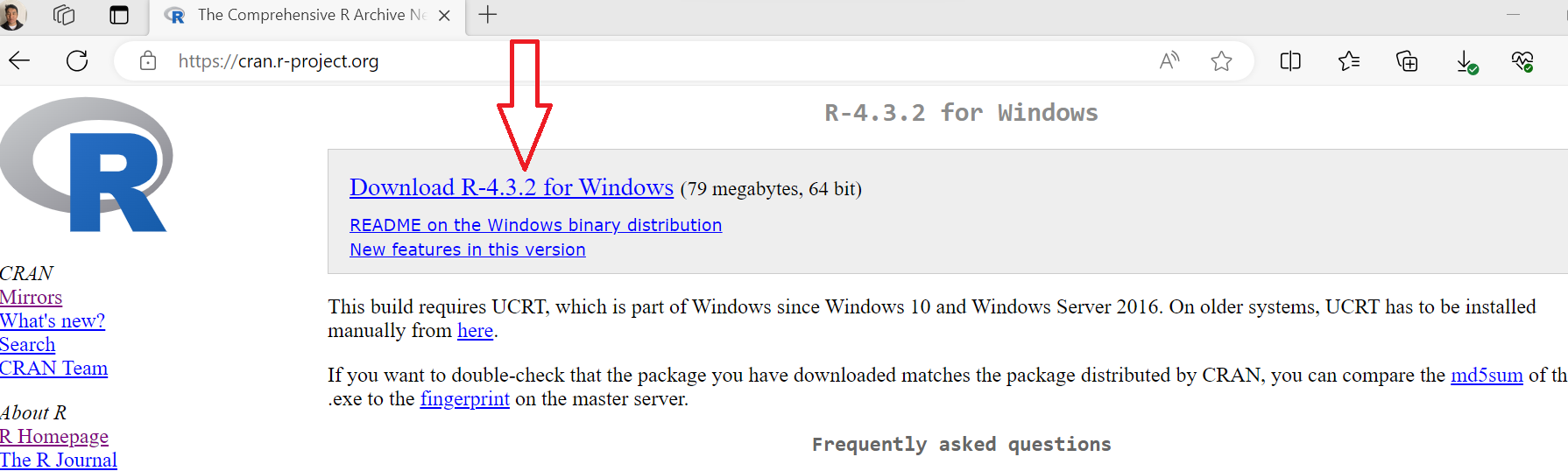
- Click on the ‘Download R-4.3.2 for Windows’ for Windows.
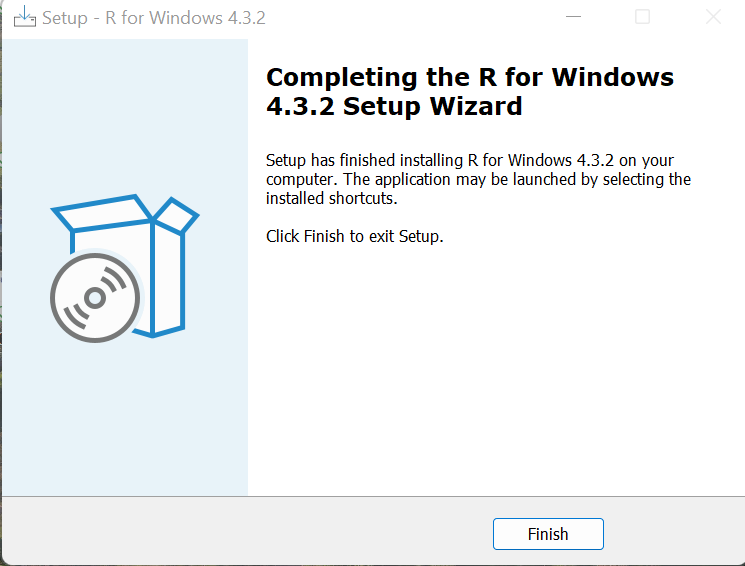
Run the downloaded installer by double clicking on the ‘R-4.3.2-win.exe’ file.
Follow the installation instructions, selecting the default options unless you have specific preferences. Then simply click Finish.
For Mac OS:
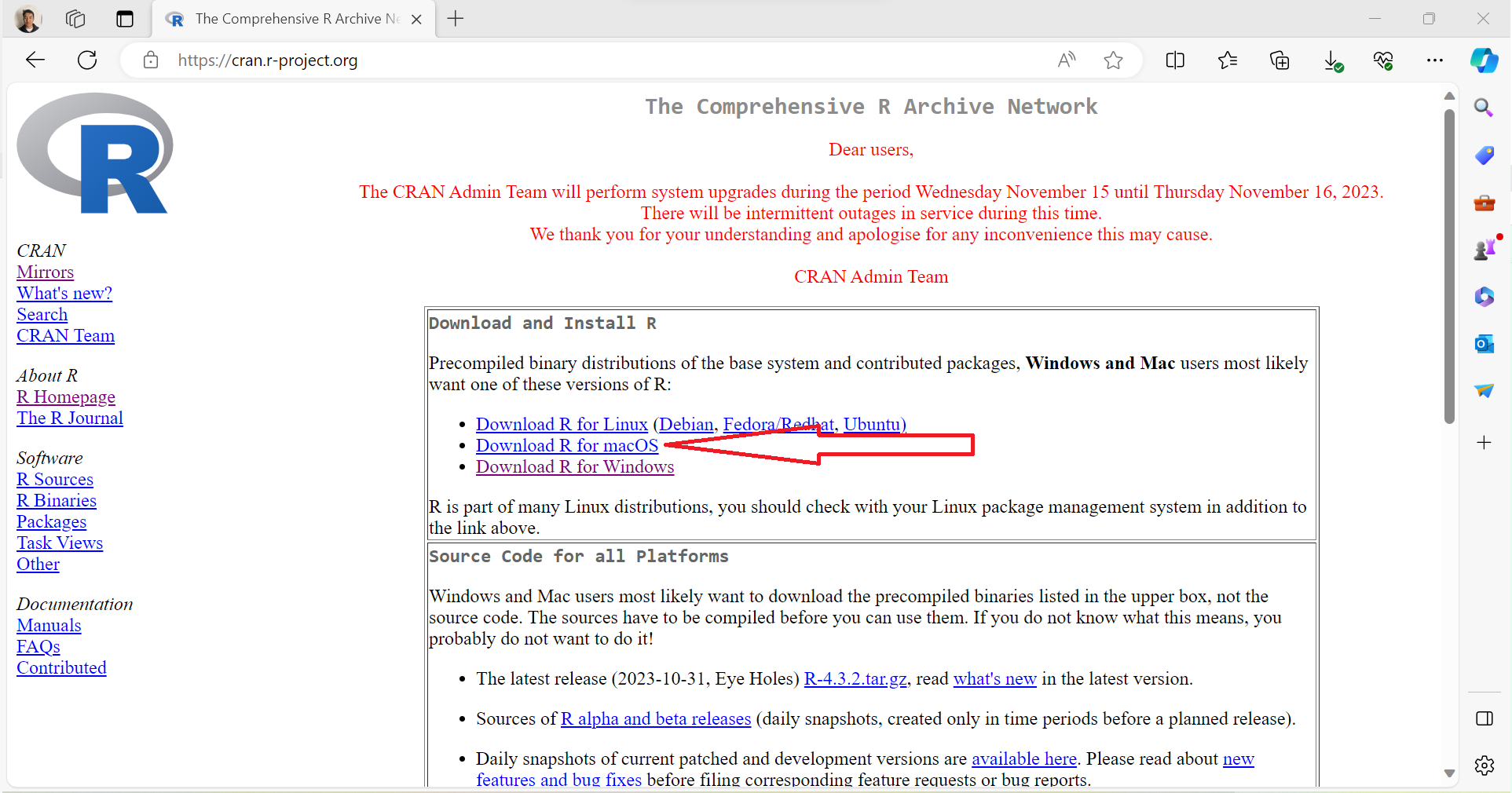
- Open the internet browser and go to [https://cran.r-project.org/] and click on the ‘Download R for macOS’.
- Click on the ‘R-4.3.2-arm64.pkg’ link.
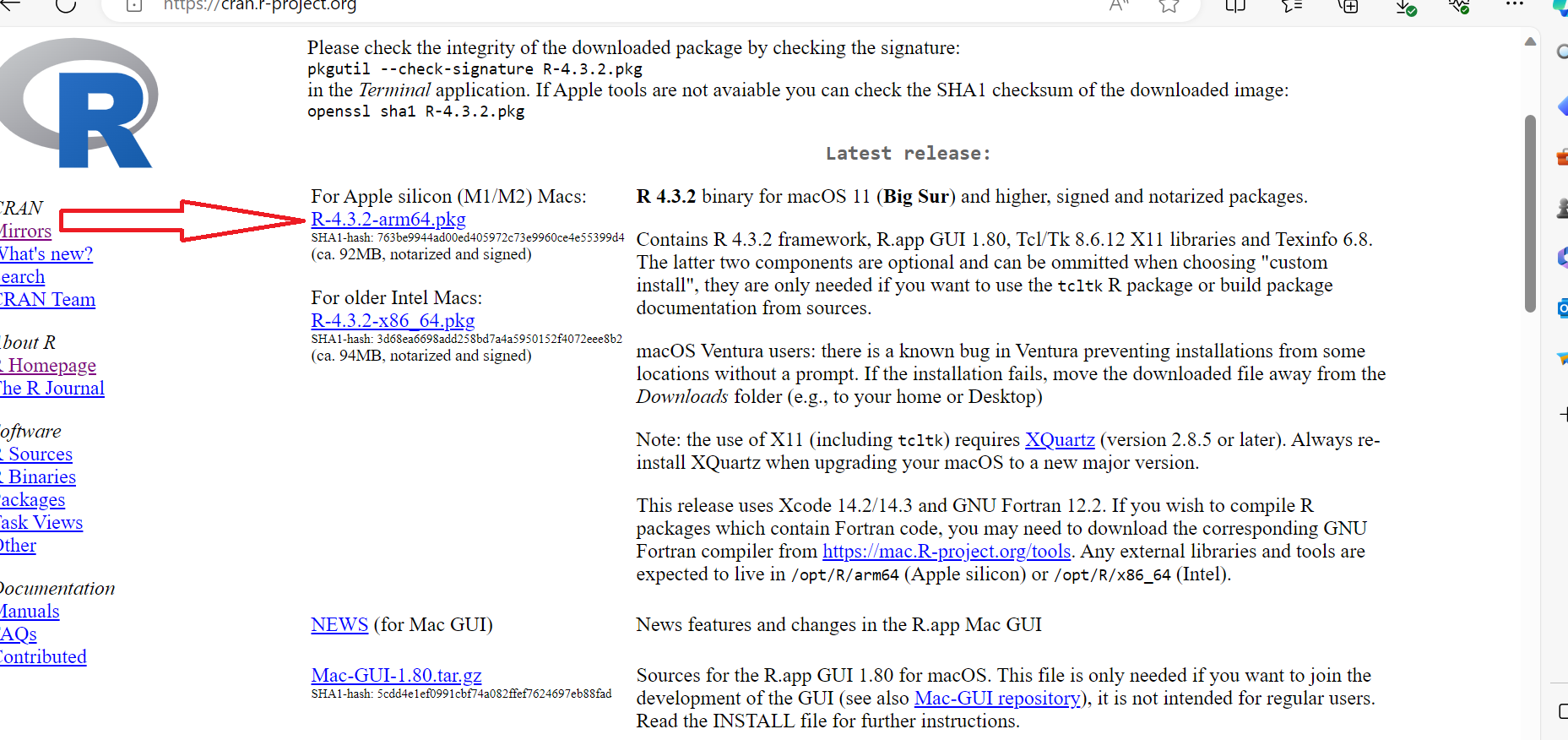
Open the downloaded ‘R-4.3.2-arm64.pkg’ file and double click on it.
Follow the installation instructions, selecting the default options unless you have specific preferences.
Step 2: Installing RStudio
For Windows:
After you have installed R, visit [https://posit.co/download/rstudio-desktop/#download] to download Rstudio.
Click on the ‘Download Rstudio Desktop for Windows’ link.
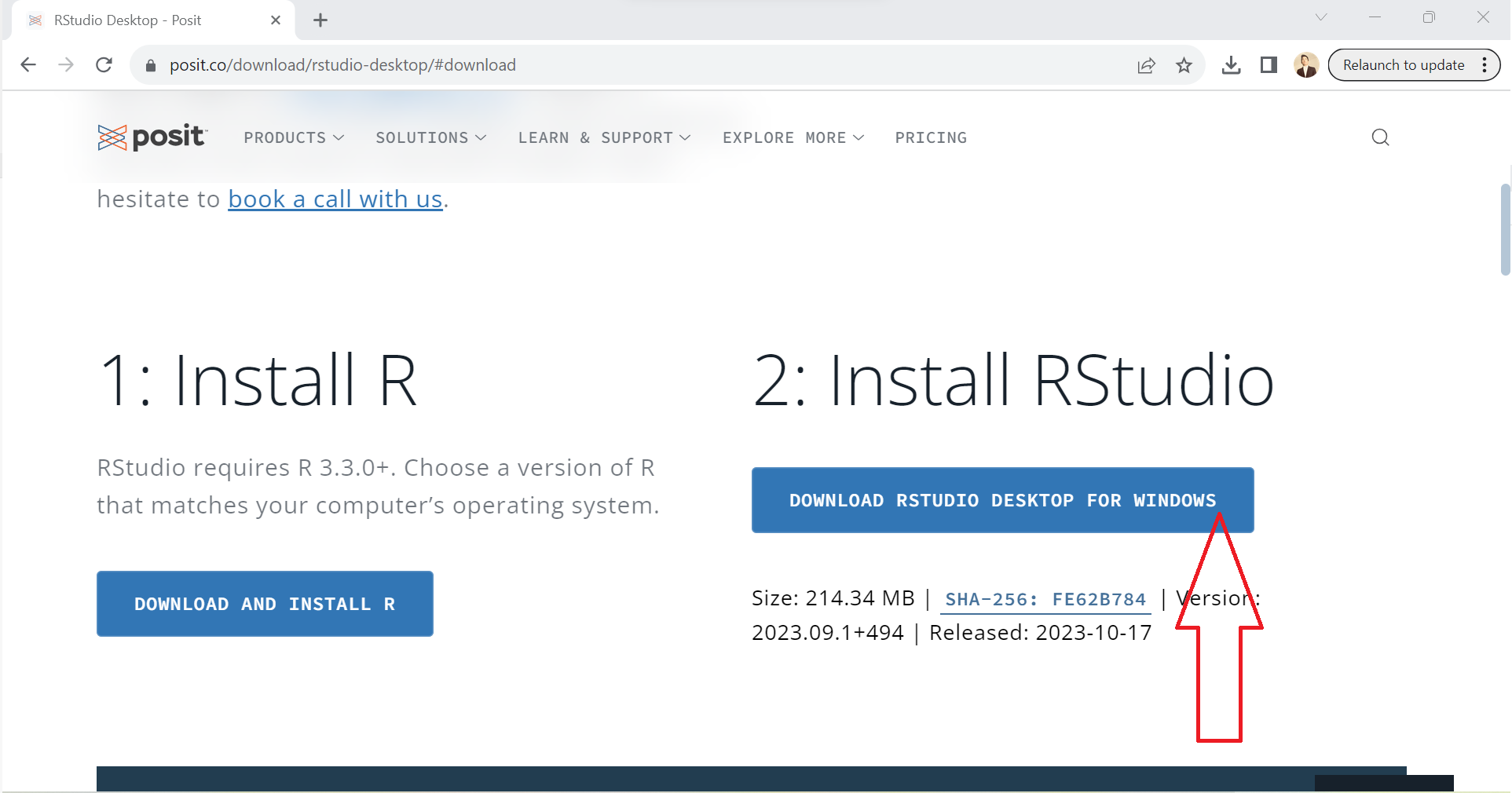
Run the downloaded installer by double clicking on the ‘RStudio-2023.09.1-494’ file.
Complete the installation process by choosing the default options.
For Mac OS:
After you have installed R, visit [https://posit.co/download/rstudio-desktop/#download] to download Rstudio.
Click on the **‘RSTUDIO-2023.09.1-494.DMG”’* link as shown below.
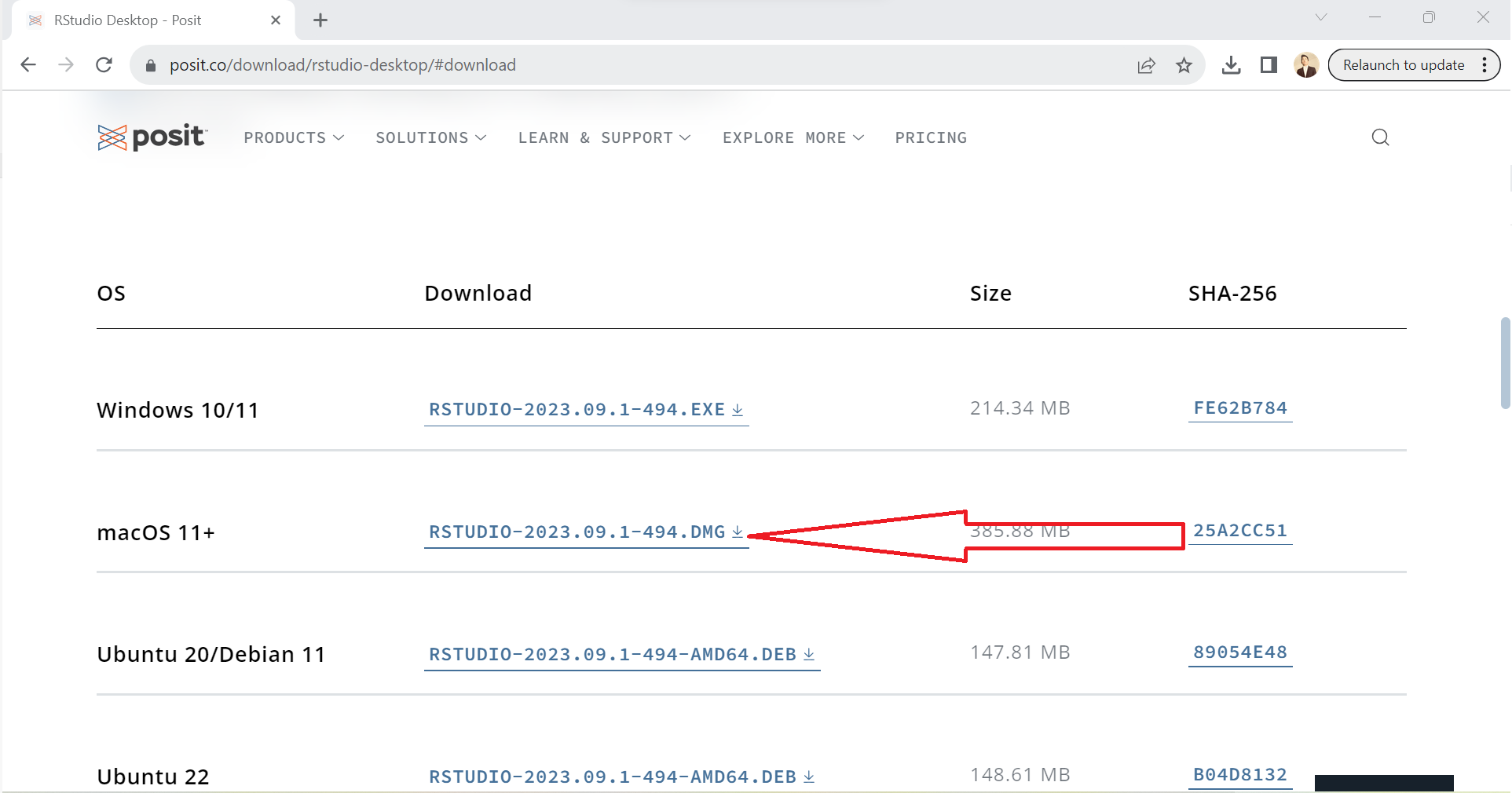
Run the downloaded installer by double clicking on the ‘RStudio-2023.09.1-494.dmg’ file (the version number may be different over time).
Double click on the ‘RStudio-2023.09.1-494.dmg’ file icon and complete the installation process by choosing the default options.
If you have trouble getting Rstudio working, move on to the next section.
Web based version of RStudio
There are some challenges in installing RStudio in the older MAC OS which doesn’t meet the system requirements for the latest version of RStudio. Running RStudio Desktop directly on a Chromebooks is also an issue as Chrome OS is a different operating system. So we may look to use web-based alternatives like RStudio Cloud, which is designed to work in web browsers and doesn’t rely on the local operating system.
RStudio Cloud
RStudio cloud is a web-based platform that allows users to access R and RStudio from a web browsers without needing to install R and RStudio.It is accessible from any device with an internet connection.To get started with RStudio Cloud, you can visit the RStudio Cloud website and create an account as follows
- Visit [https://posit.cloud/]
- Click on the ‘Get started’ link.
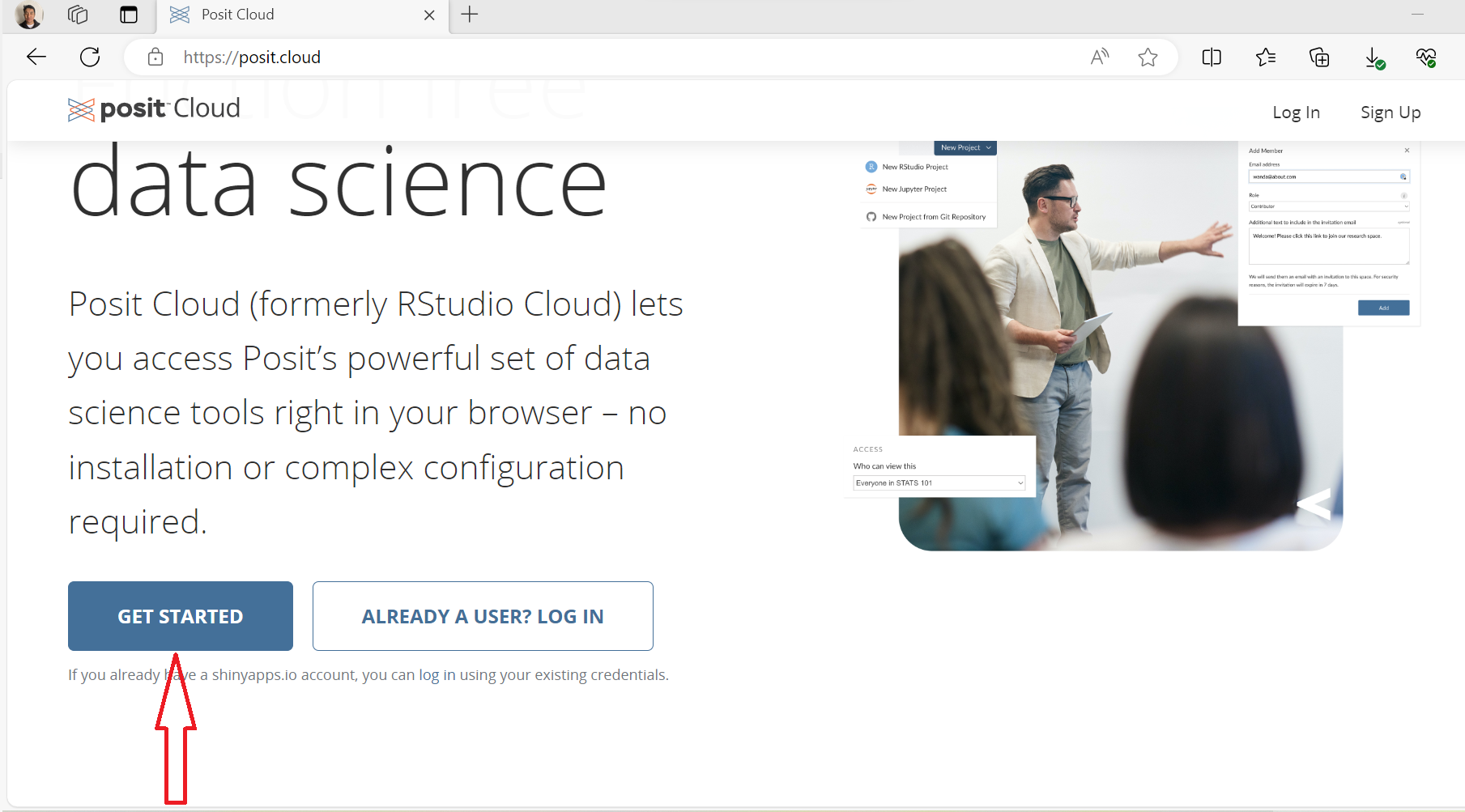
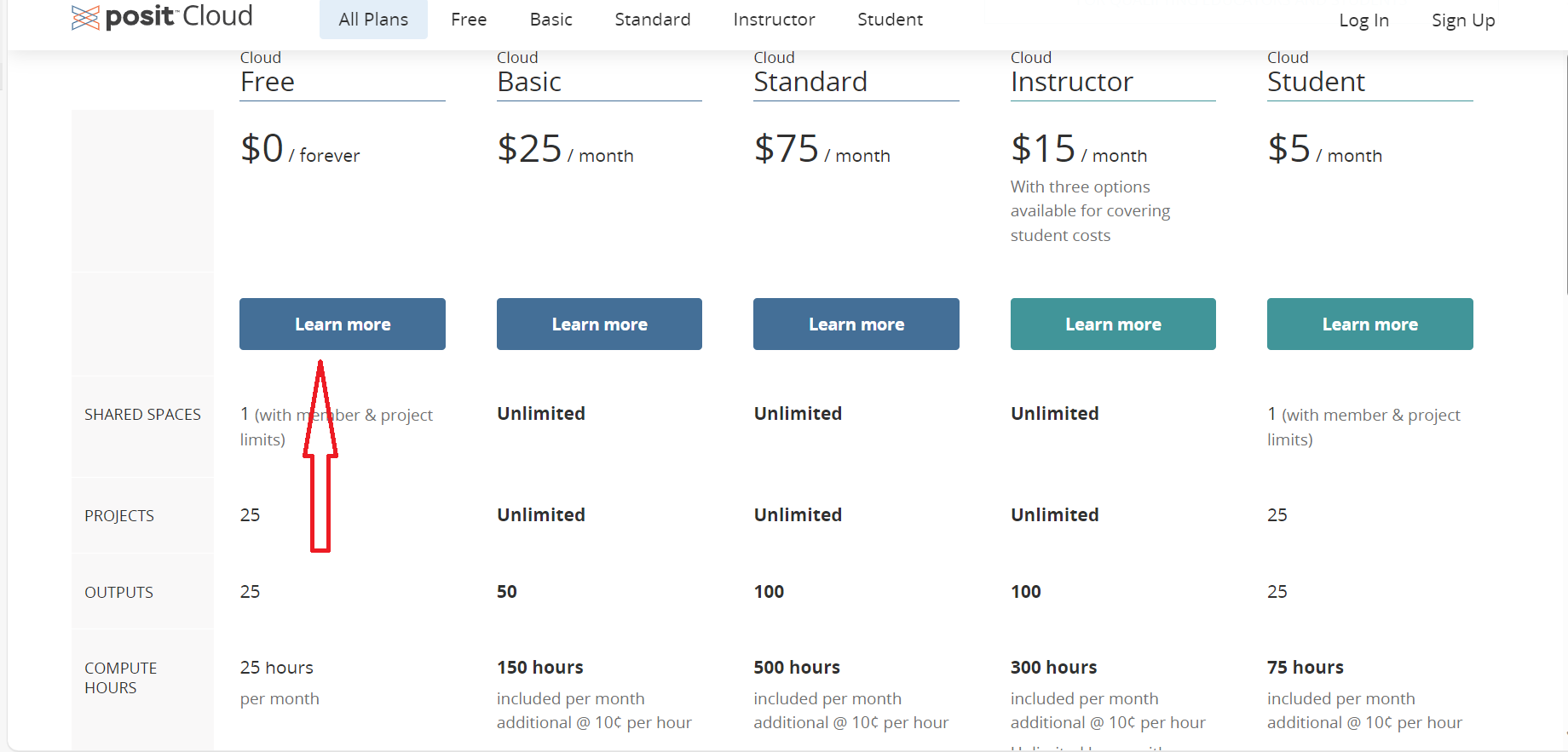
- There are different plans and their details. You can click on the ‘learn more’ under ‘cloud free’.
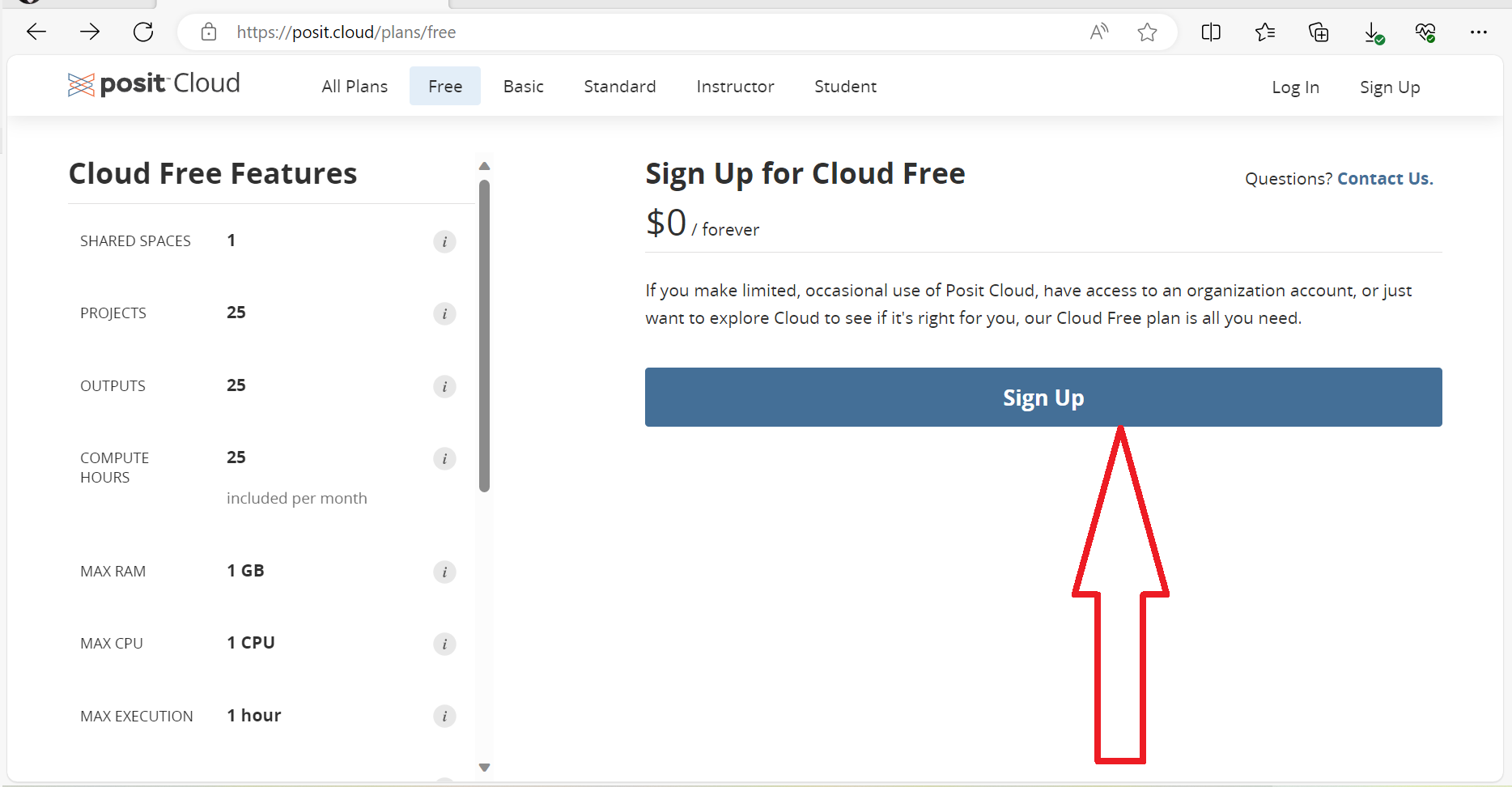
- Click the ‘sign up’ link.
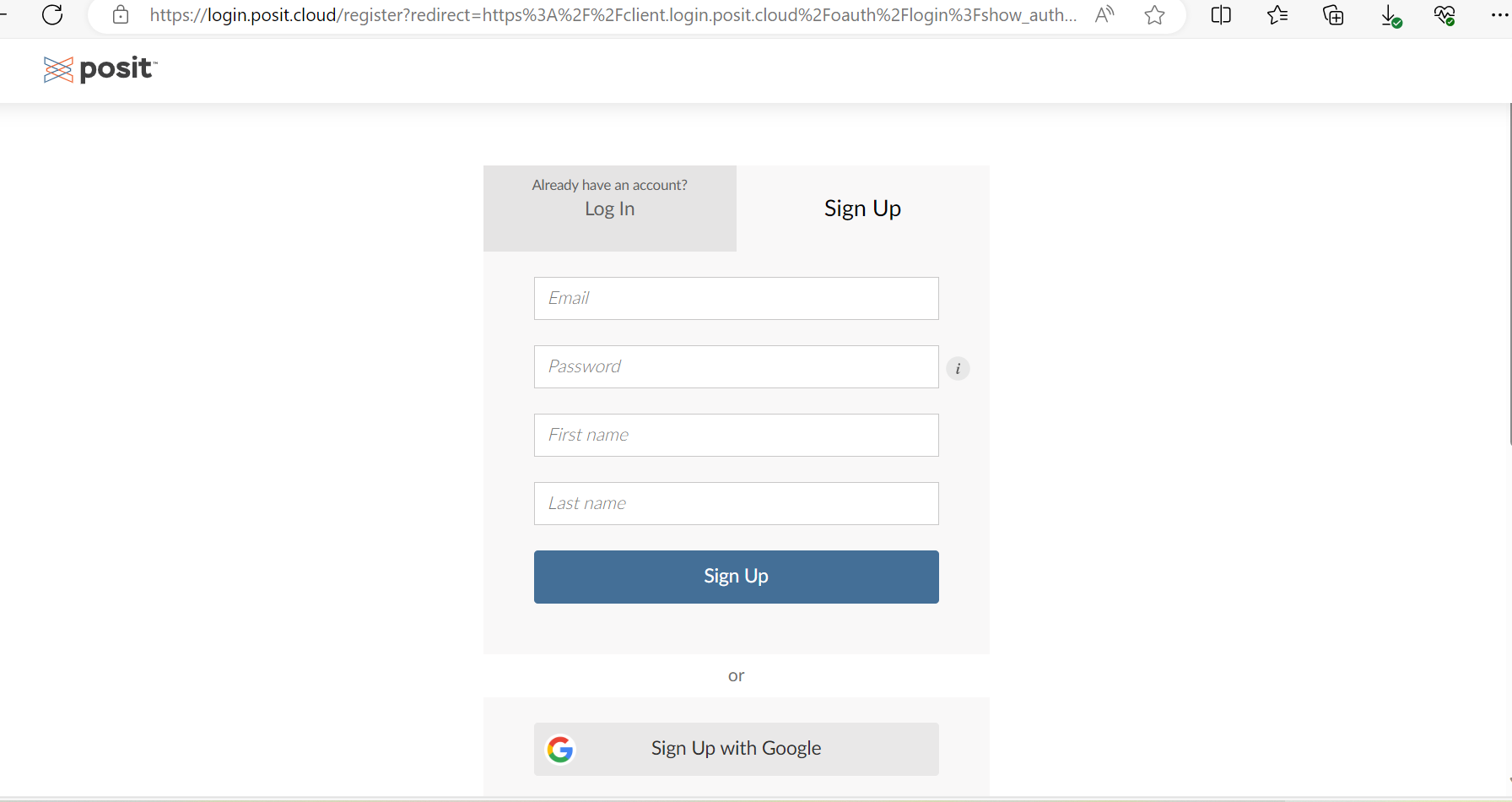
- Add your email address, set a password, your first and last name.
Go to your email and click that link to verify that the email address is correct. Click continue.
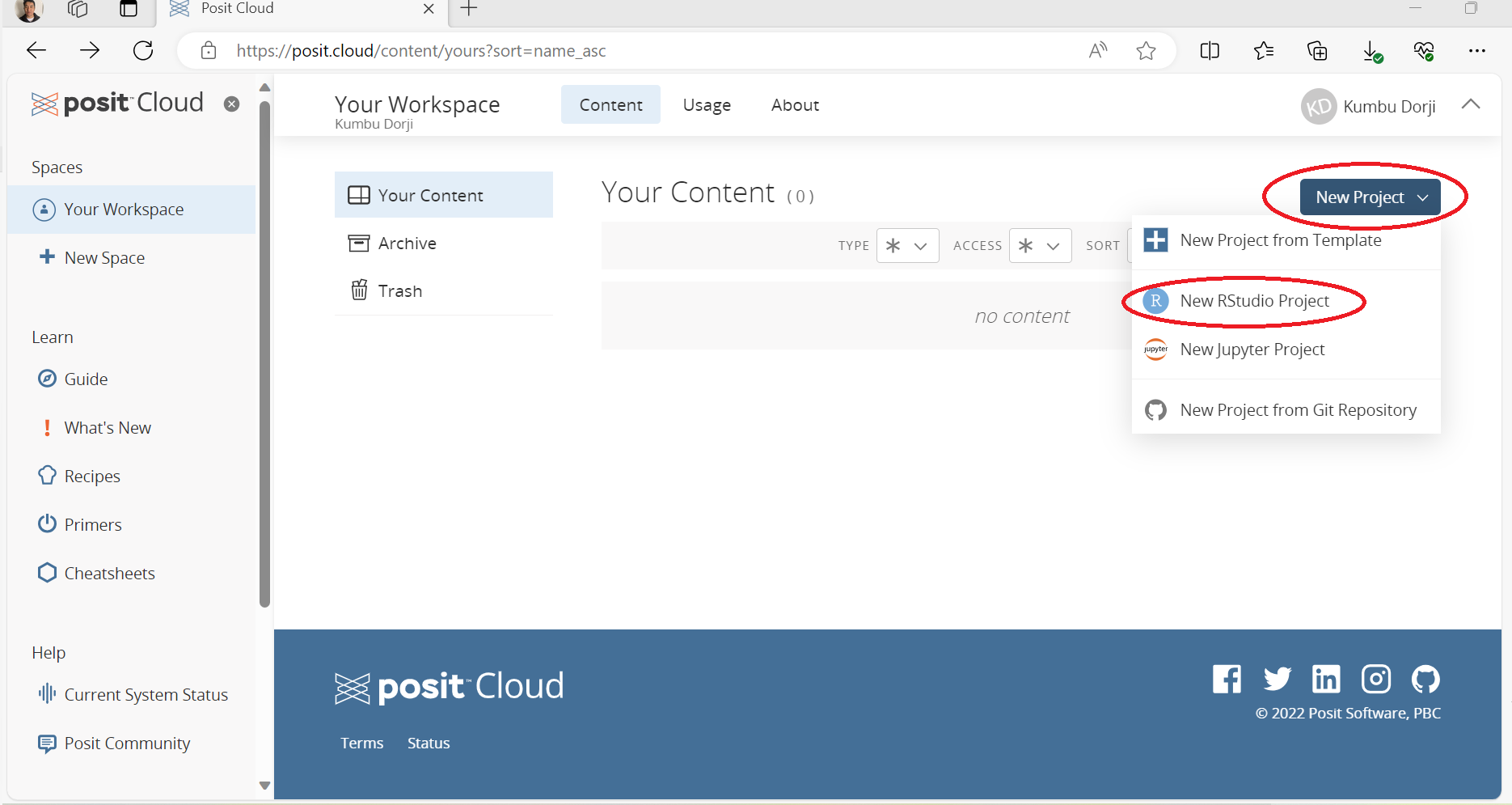
Click on the ‘New Project’ and then on the ‘New RStudio Project’.
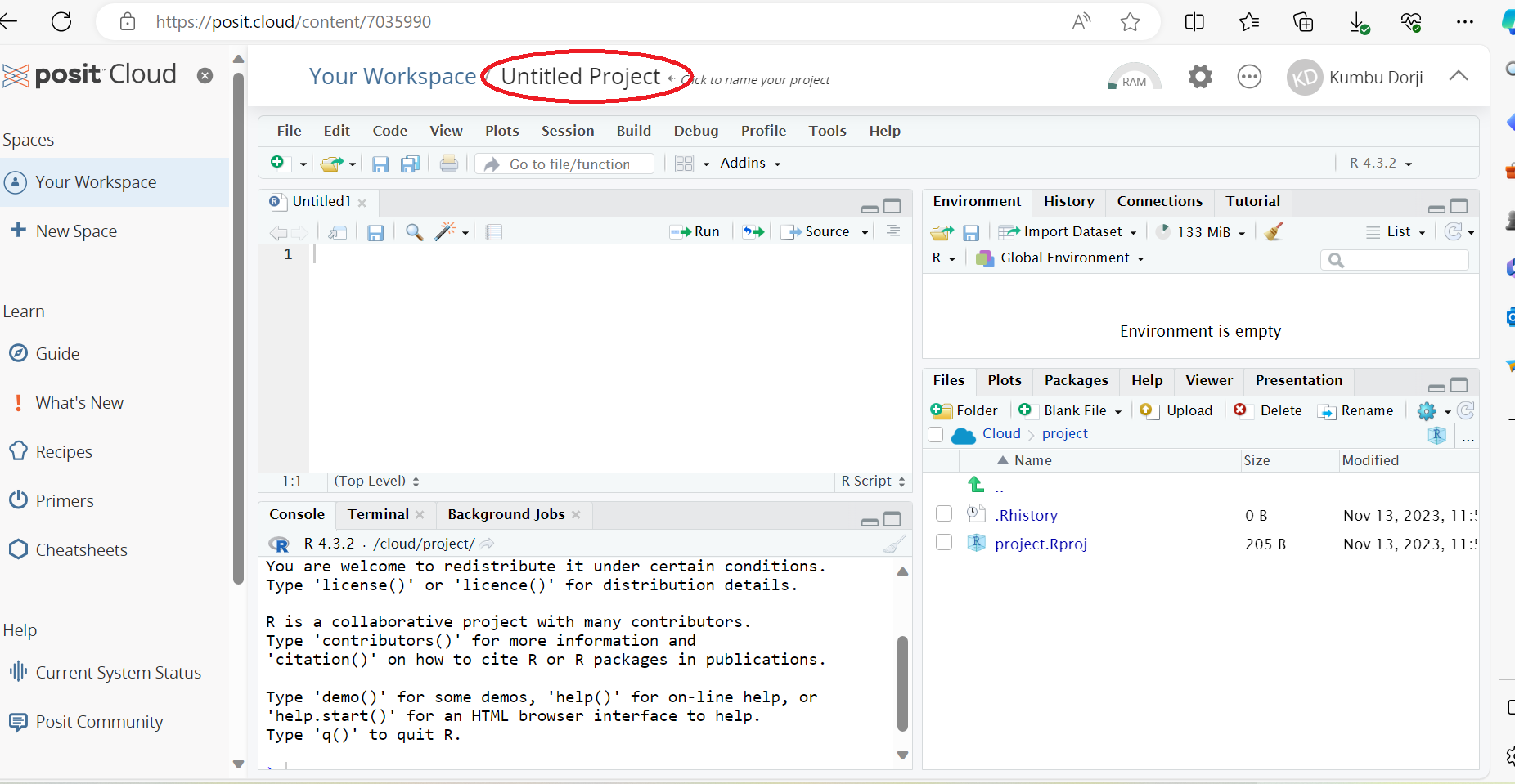
- You can Click to name your project and is ready to use.
Rtools
Rtools contains the required compilers which are required to compile R packages from the source on Window systems. You are not required to install Rtools if you want to stick to base R and add-on packages that are available as pre-complied binaries at CRAN. However, in advanced topics there may be other packages that are required to be compiled on the specific machine you are using. Also if you want to make your own R packages, you will need Rtools.
Installing Rtools
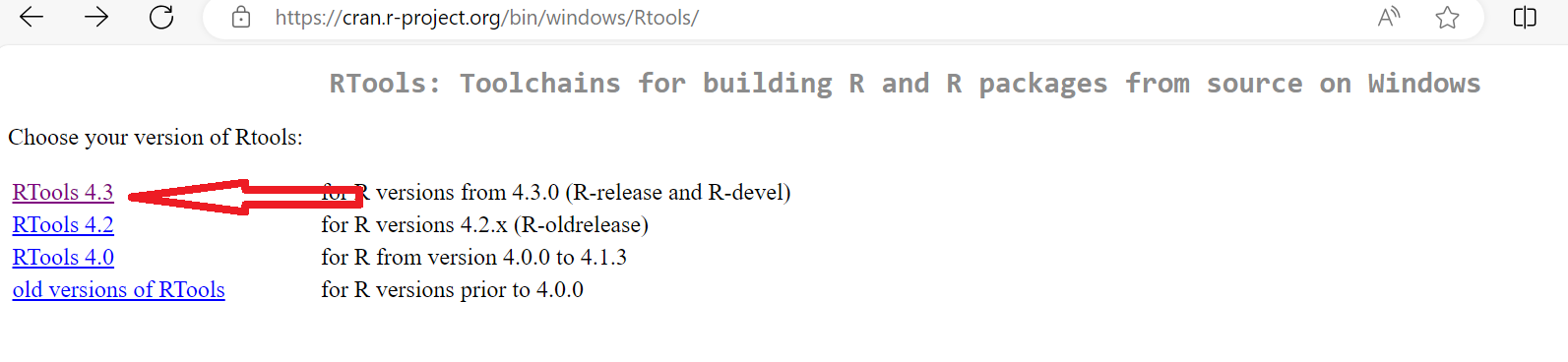
- Go to [http://cran.r-project.org/bin/windows/Rtools/] and click the latest version available(Currently RTools 4.3).
- Click on the Rtools43 installer link as shown below
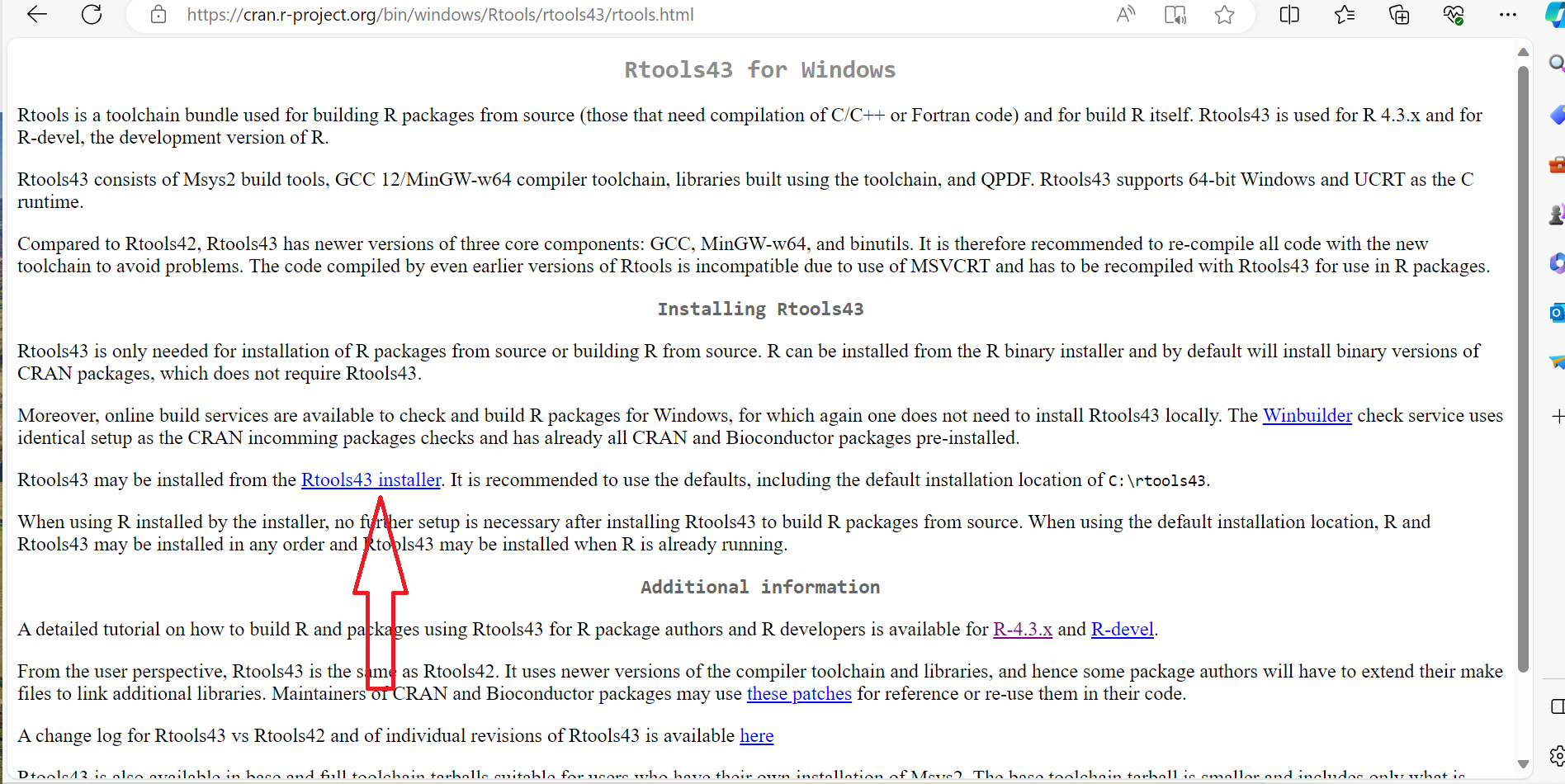
- Run the installer rtools43-5863-5818.exe accepting the defaults if you are only interested in building packages.
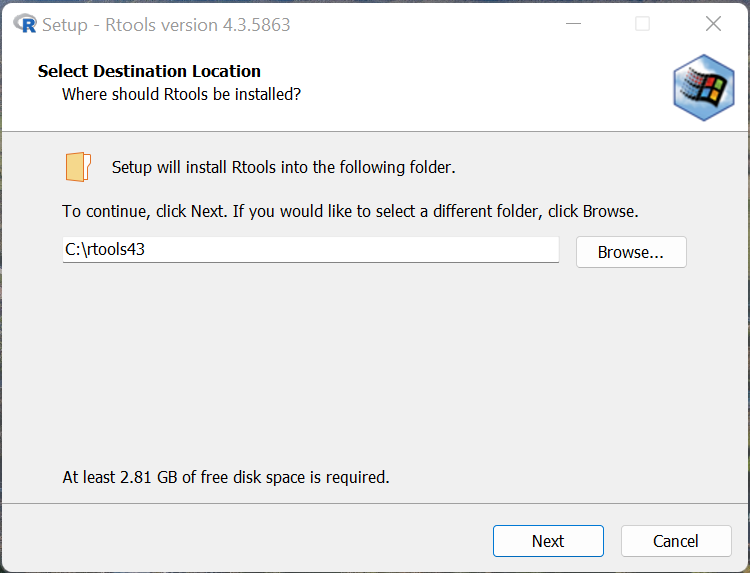
Click next and complete the installation.
Test your installation: You can test by compiling a simple R package from source. e.g, install.packages() function install packages that has C/C++ code and needs compilation. You can type
install.packages(“package_name”, type = “source”).