#Lab Session 1 - Basic SQL Using the PostgreSQL DBMS
### By Mitchell Welch
### University of New England
---
## Reading
* Chapter 6 from ***Fundamentals of Database Systems*** by Elmazri and Navathe
---
## Summary
* Introductory Points
* Creating A Database
* Creating Tables
* Inserting Data
* Some Exercises For You
* Basic Retrieval Queries
* Some Exercises For You
---
## Introductory Points
* Welcome to the practical classes for COSC210
* Through these classes you will be covering:
* Structured Query Language using PosgreSQL
* Development of Database-driven applications in Java
* Development of Database-driven web applications in PHP
* The use of NoSQL databases with MongoDB
* Spatial Databases
* Each lab session will have a least one video lecture and a series of exercises for you to complete.
* All of the lab exercise should be completed using the software installed on turing (as should all of your assignments)
* In today's practical session you will be:
* Use the utilities bundled with PostgreSQL to create a database.
* Use the interactive tool (`psql`) to create some relations (tables), insert data into them and retrieve information
* Introduced to the Basic SQL DDL and DML statements
---
## Creating A Database
* Before any relations can be created and data entered entered, a database must be created.
* This can be done in Postgres using the `createdb` application.
* `createdb` is a utility bundled with the PosgreSQL DBMS that can be launched from the command-line
* The utility expects at least one command-line argument, specifying the name of the database to be created.
* Example:
```
[mwelch8@turing ~]$ createdb mwelch8_prac_01
```
* Once the database has been created, you can access it through the `psql` interactive query client.
* `psql` is bundled with postgres and allows users to access the database via the command-line
* `psql` expects at least one command-line argument, specifying the name of the database that you wish to access.
```
[mwelch8@turing ~]$ psql mwelch8_prac_01
psql (9.4.4)
Type "help" for help.
mwelch8_prac_01=>
```
* Note that the `psql` utility has a full range of command-line options - please review the [online documentation](http://www.postgresql.org/docs/9.4/static/app-psql.html) for additional info.
* Once you are successfully logged into the database, you should notice the different command prompt.
* You can now interact with the database using both SQL commands and the built-in `psql` commands.
* The full list of `psql` commands can be viewed by entering `\?`
* The most common commands that you will be using are:
* `\dt` to list the available relations
* `\dv` to list the available views
* `\q` to exit
* `\copy` to execute an SQL copy command to upload data
* `\i` to execute the commands in an SQL file
You may notice that others are connected to the same DBMS as you, this means that others can create tables called prac_01. To avoid confusion it is better to put your username infront e.g. username_prac_01.
If you want to check the databases you have created you can type:
* `psql -U your_user_name -l | grep your_user_name`
Which results in,
`prac2 | your_user_name | UTF8 | en_AU.UTF-8 | en_AU.UTF-8 | `
`test | your_user_name | UTF8 | en_AU.UTF-8 | en_AU.UTF-8 | `
---
## Creating Tables
* Once the database has been created, we can now start constructing relations and insert some data into our database.
* The `CREATE TABLE` SQL command is used to specify a new relation by giving it a name and specifying its attributes and any initial constraints:
* Basic syntax:
```sql
CREATE TABLE my_table(
attribute_1 data_type,
attribute_2 data_type
);
```
* Each attribute must have a data type specified in the `CREATE` statement.
* SQL provides a wide range of data types:
* Numeric - SMALLINT, INTEGER, FLOAT, REAL
* Character String - CHAR(*n*), VARCHAR(*n*)
* Bit String - BIT(*n*)
* Boolean - BOOLEAN
* Dates and Times - DATE, TIMESTAMP
* Please review the postgres [documentation](http://www.postgresql.org/docs/9.4/static/datatype.html) for a full specification of the datatypes.
* Please note that the precisions and ranges of the numeric types can be implementation specific (for example and INTEGER in postgres may be 32-bit, whereas in other DBMSs it may be 64-bit)
* When tables are created, constraints can be set:
* Default values
* Primary Keys
* Foreign Keys
* CHECK clauses
* Setting a default value for a column is achieved using the `DEFAULT ` clause.
* You can also specify that a column should not accept NULL values using the `NOT NULL` clause:
```sql
CREATE TABLE department (
dname VARCHAR(25) NOT NULL,
dnumber INTEGER,
mgrssn CHAR(9) NOT NULL,
mgrstartdate DATE,
PRIMARY KEY (dnumber)
);
```
* Primary Keys can be specified in two ways:
* The first is to simply place the `PRIMARY KEY` clause after the attribute declaration:
```sql
my_attribute_name the_type PRIMARY KEY
```
* The second way is to define a constraint:
```sql
CONSTRAINT my_constrain_name
PRIMARY KEY(my_attribute)
```
* Both result in the specification of the primary key
* The `UNIQUE` clause can be used to specify alternate keys.
```sql
my_attribute_name the_type UNIQUE
```
* Only unique values can be inserted into the `my_attribute_name` column with this constraint in place
---
## Creating Tables
* Relationships between tables are specified using the `FOREIGN KEY` clause:
```sql
FOREIGN KEY (my_attribute) REFERENCES
other_relation(other_relations_Attribute)
```
* A table can have multiple foreign keys with different tables
* Recall that whenever a record is inserted, deleted or updated, there is the possibility that an integrity constraint will be violated.
* The default action (i.e. if no other action is defined) is to restrict any such update, insertion or deletion.
* SQL allows a DB designer to specify other actions through the use of a **referential triggered action**
* The operations available include `SET DEFAULT`, `SET NULL` and `CASCADE`
* The triggers for these operations are `ON UPDATE` and `ON DELETE`
* For example the DDL statement for the EMPLOYEE table:
```sql
CREATE TABLE employee (
fname varchar(15) NOT NULL,
minit varchar(1),
lname varchar(15) NOT NULL,
ssn char(9) PRIMARY KEY,
bdate date,
address varchar(50),
sex char,
salary decimal(10,2),
superssn char(9),
dno integer,
foreign key (superssn) references employee(ssn)
ON DELETE SET NULL ON UPDATE CASCADE,
foreign key (dno) references department(dnumber)
ON DELETE SET NULL ON UPDATE CASCADE
);
```
* In the employee table, the `ON DELETE SET NULL` and `ON UPDATE CASCADE` clauses on the Super_ssn will result in:
* On a DELETE operation on a supervising employee tuple, the Super_ssn column on any tuples of employees referencing this tuple will be set to NULL.
* On an UPDATE to the Super_ssn column, the changes will be cascaded throguh to all referencing tuples.
---
## Inserting Data
* Once a table structure has been created, data can be inserted into the tables.
* This is achieved using either the `INSERT` and `COPY` commands.
* The `INSERT` command can be used to create individual rows of data in a table:
```sql
INSERT INTO my_table(attribute_1, attribute_2 ... attribute_n)
VALUES (val_1,val_2 ... val_n);
```
Example:
```sql
INSERT INTO employee(Fname,Lanme,Dno,Ssn)
VALUES ('Richard', 'Marini', 4, '5635633867');
```
* Points to note:
* String/date/timestamp type values are single-quoted, numeric types are not.
* The attribute list is actually optional - the value list will need to correspond to all columns in the target table.
* PostrgreSQL is case-insensitive when it comes to identifier names (I have used upper-case for keywords to emphasise that they are keywords - this is not nessesary)
---
## Inserting Data
* The alternate approach to populating your tables with data is to use the `COPY` command.
* The `COPY` command reads in data from a flat-file, such as a **Comma Separated Values**(CSV) file directly into the table.
* Syntax:
```sql
COPY my_table FROM '/path/to/my/data/file.csv' CSV;
```
* Due to the permissions configuration within the postgres DBMS, when using the `psql` client, we have to use the `\copy` command:
```sql
\copy my_table FROM '/path/to/my/data/file.csv' CSV;
```
* `\copy` is a wrapper for the `COPY` command with the required permissions to import the data.
---
## Deleting Data
* Data can be deleted from a table through the use of the `DELETE` command
* This will delete all rows of data from *my_table* that meet the condition specified:
```sql
DELETE FROM my_table WHERE
```
* This will delete all rows of data from *my_table*
```sql
DELETE FROM my_table
```
---
# Some Exercises For You
### Exercise 1.
The first exercise is to create a database for this weeks practical session. You should name your database \\_prac\_01. For example my database will be created using:
```
[mwelch8@turing ~]$ createdb mwelch8_prac_01
```
### Exercise 2.
Log into you database using the `psql` client and check that it has no relations using the `\dt` command.
```
[mwelch8@turing ~]$ psql mwelch8_prac_01
psql (9.4.4)
Type "help" for help.
mwelch8_prac_01=> \dt
No relations found.
mwelch8_prac_01=>
```
### Exercise 3.
Now your ready to create some database tables. To start with we will create the tables for the Company database we have been working with throughout the lectures. The company database has 6 tables to create.
Go through one table at-a-time and copy/paste these DDL commands into the `psql` client to create the tables
```sql
CREATE TABLE department (
dname varchar(25) not null,
dnumber integer primary key,
mgrssn char(9) not null,
mgrstartdate date
);
CREATE TABLE project (
pname varchar(25) unique not null,
pnumber integer primary key,
plocation varchar(15),
dnum integer not null,
foreign key (dnum) references department(dnumber)
);
CREATE TABLE employee (
fname varchar(15) NOT NULL,
minit varchar(1),
lname varchar(15) NOT NULL,
ssn char(9) PRIMARY KEY,
bdate date,
address varchar(50),
sex char,
salary decimal(10,2),
superssn char(9),
dno integer,
foreign key (superssn) references employee(ssn)
ON DELETE SET NULL ON UPDATE CASCADE,
foreign key (dno) references department(dnumber)
ON DELETE SET NULL ON UPDATE CASCADE
);
CREATE TABLE dependent (
essn char(9),
dependent_name varchar(15),
sex char,
bdate date,
relationship varchar(8),
primary key (essn,dependent_name),
foreign key (essn) references employee(ssn)
);
CREATE TABLE dept_locations (
dnumber integer,
dlocation varchar(15),
primary key (dnumber,dlocation),
foreign key (dnumber) references department(dnumber)
);
CREATE TABLE works_on (
essn char(9),
pno integer,
hours decimal(4,1),
primary key (essn,pno),
foreign key (essn) references employee(ssn),
foreign key (pno) references project(pnumber)
);
```
### Exercise 4.
Run a `\dt` command to check that all tables were created:
```
mwelch8_prac_01=> \dt
List of relations
Schema | Name | Type | Owner
--------+----------------+-------+---------
public | department | table | mwelch8
public | dependent | table | mwelch8
public | dept_locations | table | mwelch8
public | employee | table | mwelch8
public | project | table | mwelch8
public | works_on | table | mwelch8
(6 rows)
mwelch8_prac_01=>
```
### Exercise 5.
Now lets import some data into our database. We will be doing this use the `\copy` command. Take a quick look at the `.csv` files for the tables. Notice the row-and-column format of the data inside.
[http://turing.une.edu.au/~cosc210/workshops/prac_1/data/](http://turing.une.edu.au/~cosc210/workshops/prac_1/data/)
You can run the following command from your directory to download them all at once (saves times!!):
scp -r cosc210@turing.une.edu.au:~/public_html/workshops/prac_1/data/ .
Or ...
Copy the data into each of the data tables using an appropriate copy command. Upload them in the order: department, employee, dependent, project, works_on, dept_location.
You can download the files to your home directory or reference them from the prac_1/data directory.
```
mwelch8_prac_01=> \copy department FROM '/home/cosc210/public_html/workshops/prac_1/data/department.csv' CSV;
```
### Exercise 6.
Check the content of your tables using a simple `SELECT` query:
```sql
SELECT * FROM employee;
SELECT * FROM department;
SELECT * FROM dependent;
SELECT * FROM project;
SELECT * FROM works_on;
SELECT * FROM dept_locations;
```
### Exercise 7.
Review the relational schema presented here:
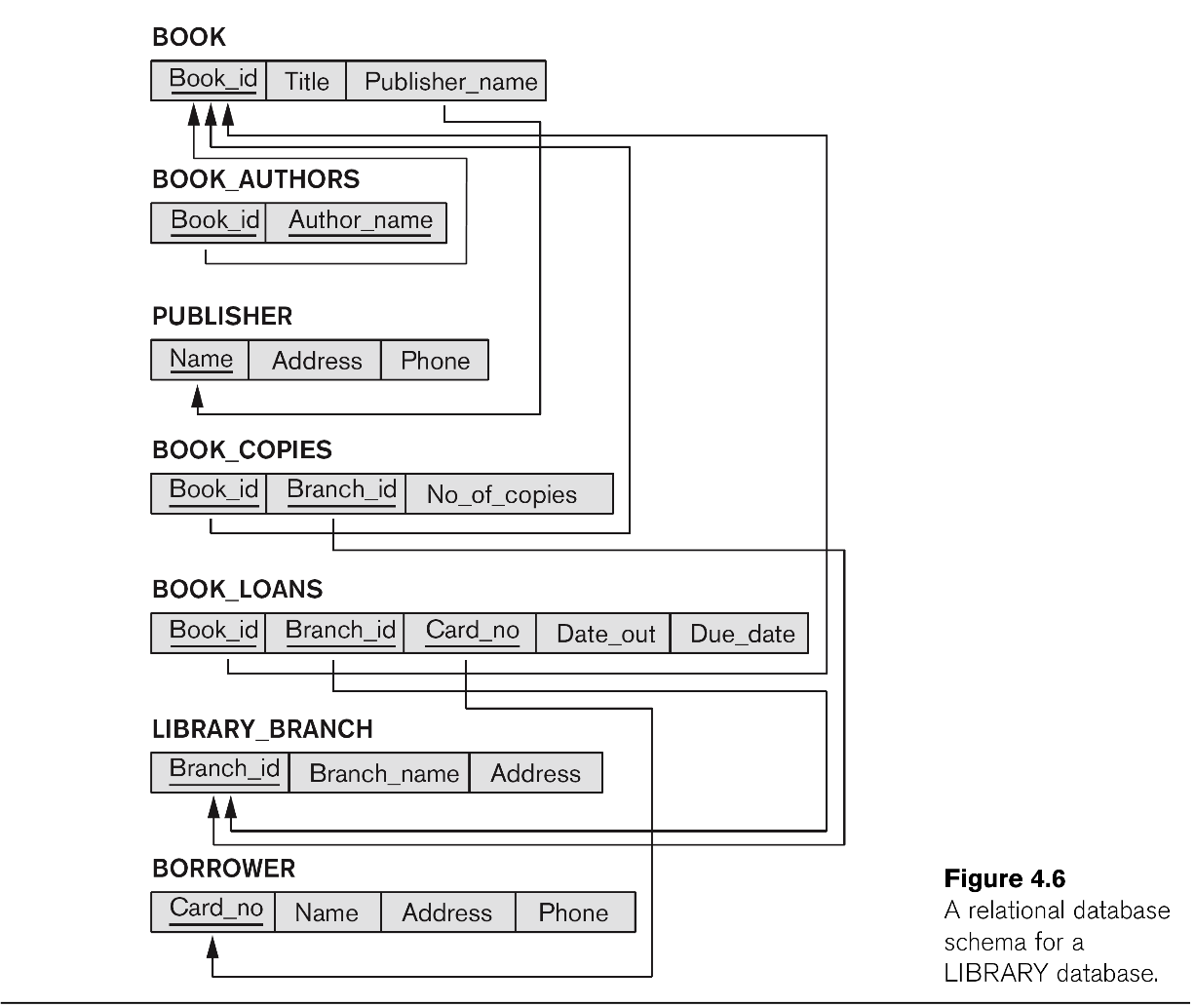
Construct appropriate SQL DDL statements to construct a relational database schema for the LIBRARY database. Make sure that you include:
* CREATE commands for each relation
* Primary keys as indicated in the schema
* Foreign keys as indicated by the arcs between the relations
* Appropriate referential triggered actions.
### Exercise 8.
Construct appropriate `INSERT` commands to insert some sample data into the LIBRARY database. What order do you need to load data into the tables? (Hint: start with the tables that don't reference any other tables)
---
##Basic Retrieval Queries
* The `SELECT` query is used to retrieve data from a relational database.
* Usually this will be used in the SELECT-FROM-WHERE statement:
```sql
SELECT
FROM
WHERE
```
* In this structure, the attribute_list is a set of attributes from the participating tables that you wish to return. These are the **Projection attributes**
* The table_list the the set of relations that are participating in the query
* The condition is a boolean expression that identifies the tuples to be returned. This is the **Selection Condition**
* The WHERE clause is optional.
* The selection criteria can make use of logical comparison operators to compare attribute values with each other and literal constants: =,<,>,<=,>= and <>.
---
##Basic Retrieval Queries
* The wild-card (*) operator can be used to return all columns.
```sql
SELECT * FROM employee WHERE Dno=5;
```
* The `DISTINCT` operator can be used to remove duplicate records from being returned from the query.
```sql
SELECT DISTINCT salary FROM employee;
```
* Query results can be ordered by specific columns (from the attributes listed in the query) using the `ORDER BY` clause.
* Multiple columns can be listed in the `ORDER BY` clause, ordering the results by the first attribute then second attribute and so on.
* Some examples for you to try:
```sql
-- Retrieve the birth date and address for the emplyee
-- John Smith
SELECT bdate, address
FROM employee
WHERE fname = 'John' AND minit = 'B' AND lname='Smith';
-- This query demonstrates the use of a join condition
-- that links the tuple from the employee table to
-- those in the department table by the dnumber/dno
-- Return the name and address for all employees
-- who work for the Research department
SELECT fname, lname, address
FROM employee, department
WHERE dname='Research' AND dnumber=dno;
-- You can join tables back onto themselves
-- Return the first and last name along with the
-- immediate supervisor o each employee
SELECT E.fname, E.lname, S.fname, S.Lname
FROM employee AS E, employee AS S
WHERE E.superssn = S.ssn;
-- The AS clause can be dropped
-- Ordering used
-- Return a list of employees and projects they are
-- working on, ordered by department and within each
-- department, ordered alphabetically by last name
-- then first name
SELECT d.dname, e.lname, e.fname, p.pname
FROM department d, employee e, works_on w, project p
WHERE d.dnumber=e.dno AND e.ssn = w.essn AND
w.pno = p.pnumber
ORDER BY d.dname, e.lname, e.fname;
```
---
# Some Exercises For You
### Exercise 9
Specify the following queries in SQL on the Company relational database the you created in the earlier exercise:
**a.** Retrieve the names of all employees in department 5 who work more that 10 hours per week on the ProductX project.
**b.** List the names of all employees who have a dependent with the same first name as themselves.
**c.** Find the names of all employees that are directly supervised by 'Franklin Wong'.
### Exercise 10
Run the pg_dump utility to obtain a backup of the database you have created today.
```
[mwelch8@turing ~]$ pg_dump _prac_01 > ~/db.sql
[mwelch8@turing ~]$ gedit ~/db.sql
```
* Review the db.sql file. Do the table `CREATE` statements look the same?
* Where are the foreign key constraints?
* Is the data present in the file and how is it imported?
* What other information is in the file?